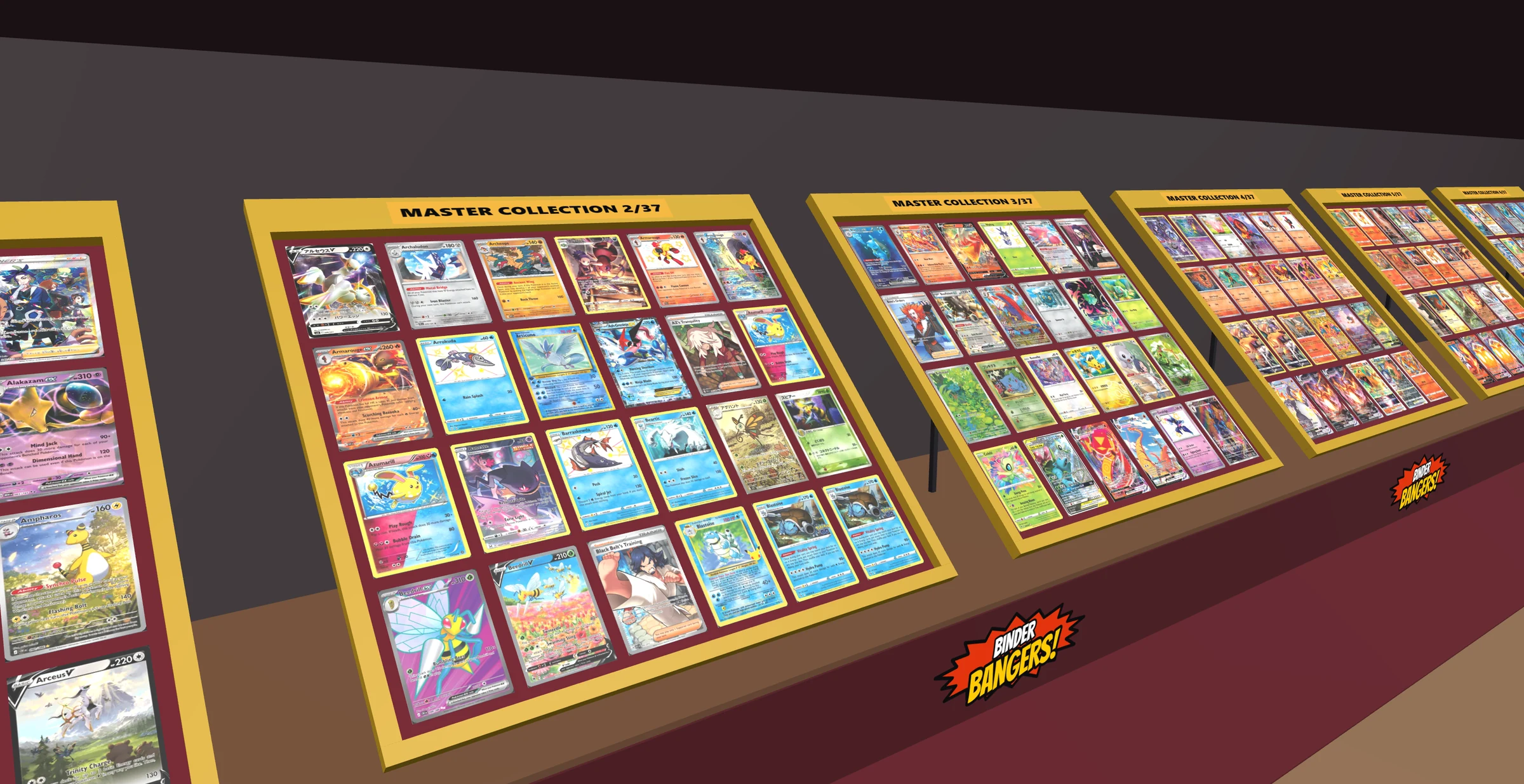
 Click to enter
Binder Bangers
Browse a Pokémon card collection and send a message in-app if there's a card that catches your eye!
Binder Bangers transports a Pokémon card collection into a digital card showcase. Binder pages flow into a customizable case, and every card can be picked up, turned over and examined as if in hand. Just like a vendor's table, a visitor can see what is for sale or for trade, what each card costs, and even per-card inquiries straight to my inbox.
This project was built with card shows, collectors and vendors in mind and is a working tool as much as a showcase. Behind the table sit a collection ledger, a desktop binder planner called the Catalogue, and a mobile companion app to take collections and track transactions on the go. One switch moves between the Catalogue, where binders are built, and the Showcase, where they are shown.
One card, two views
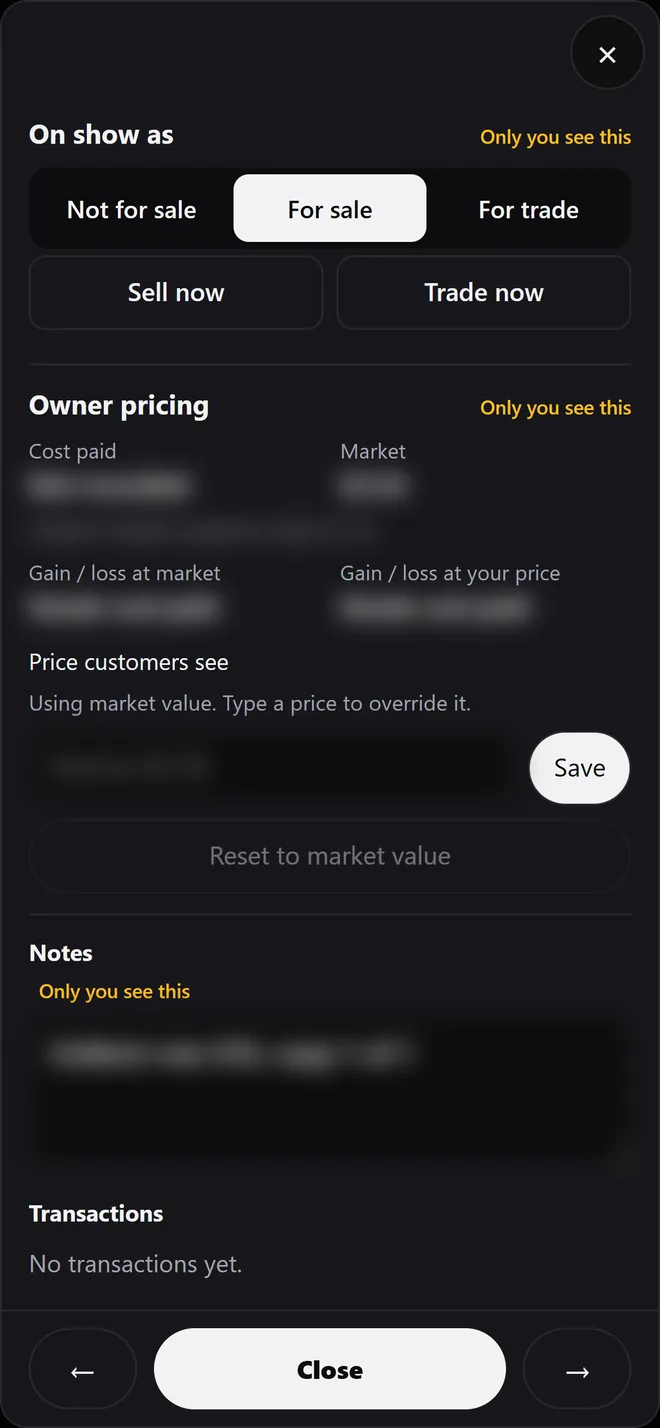
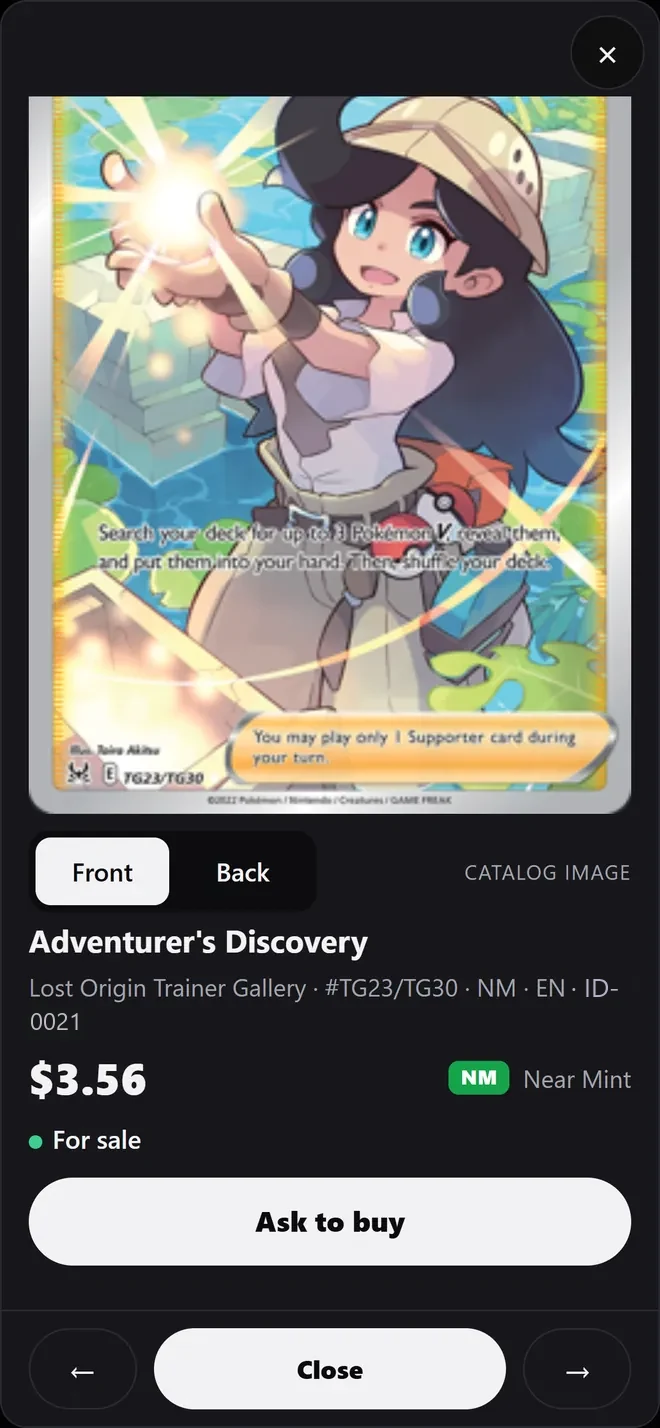
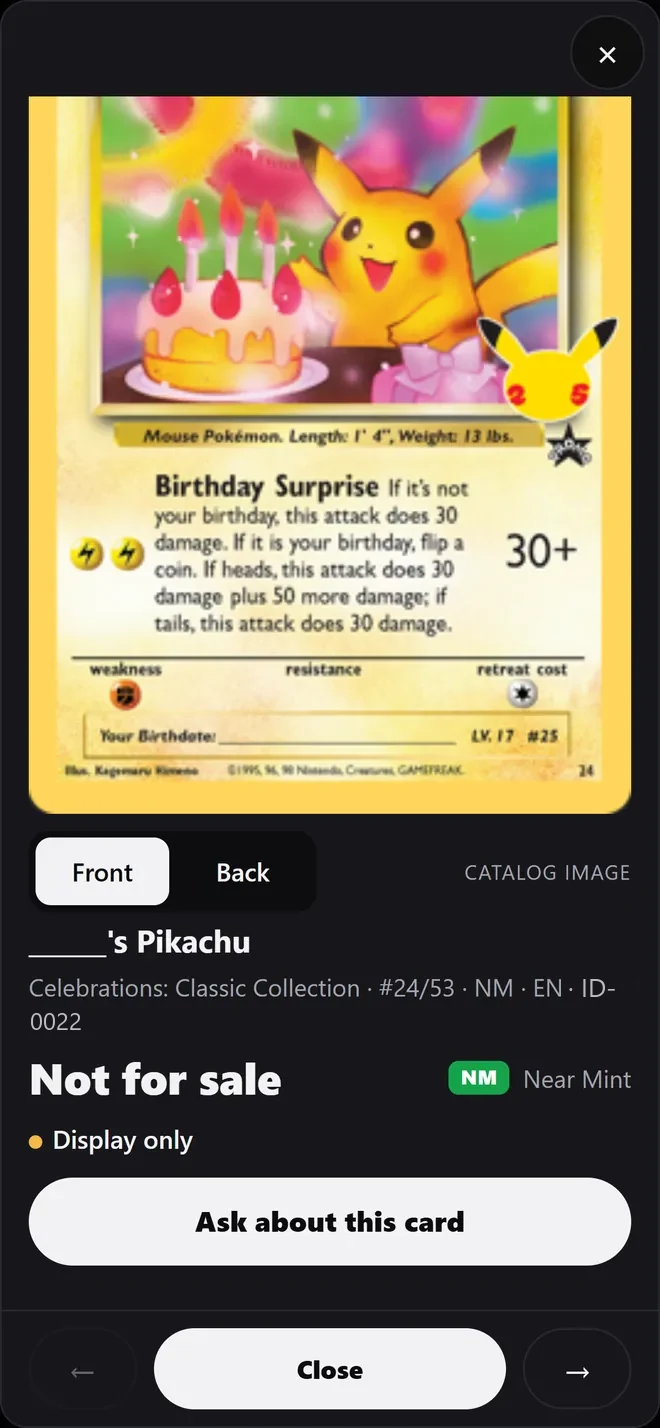
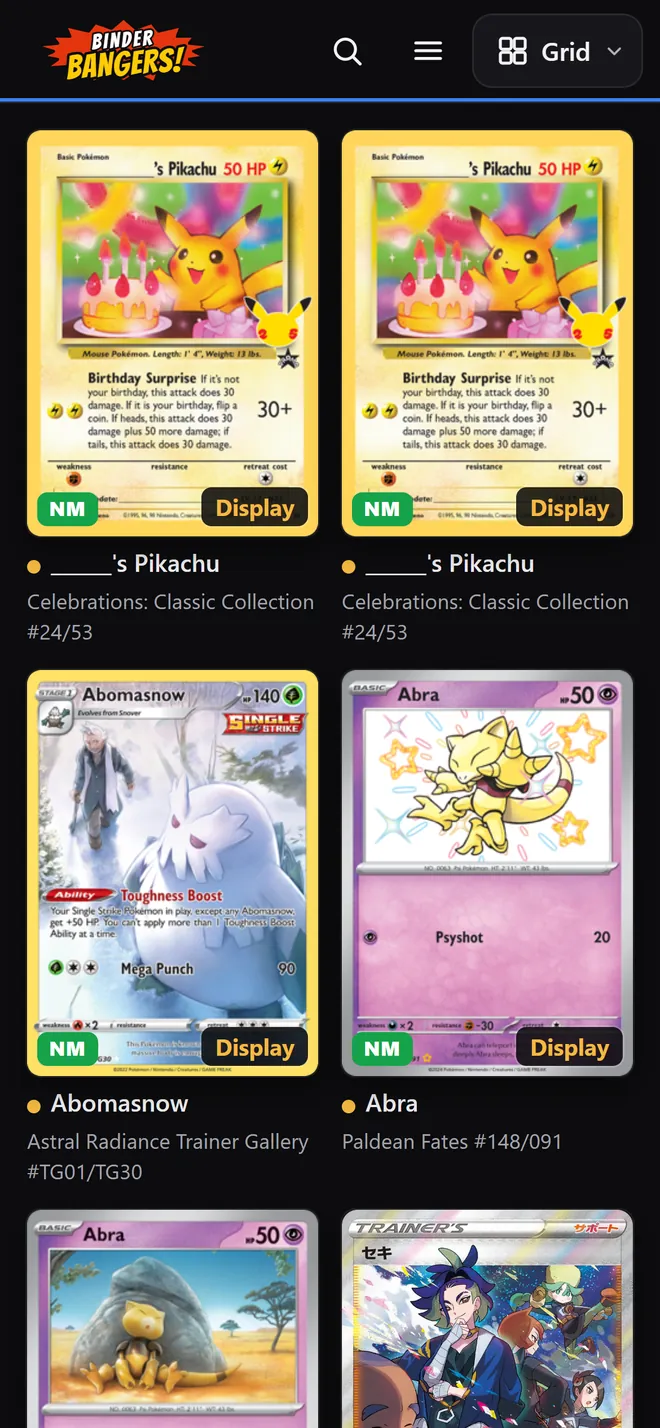
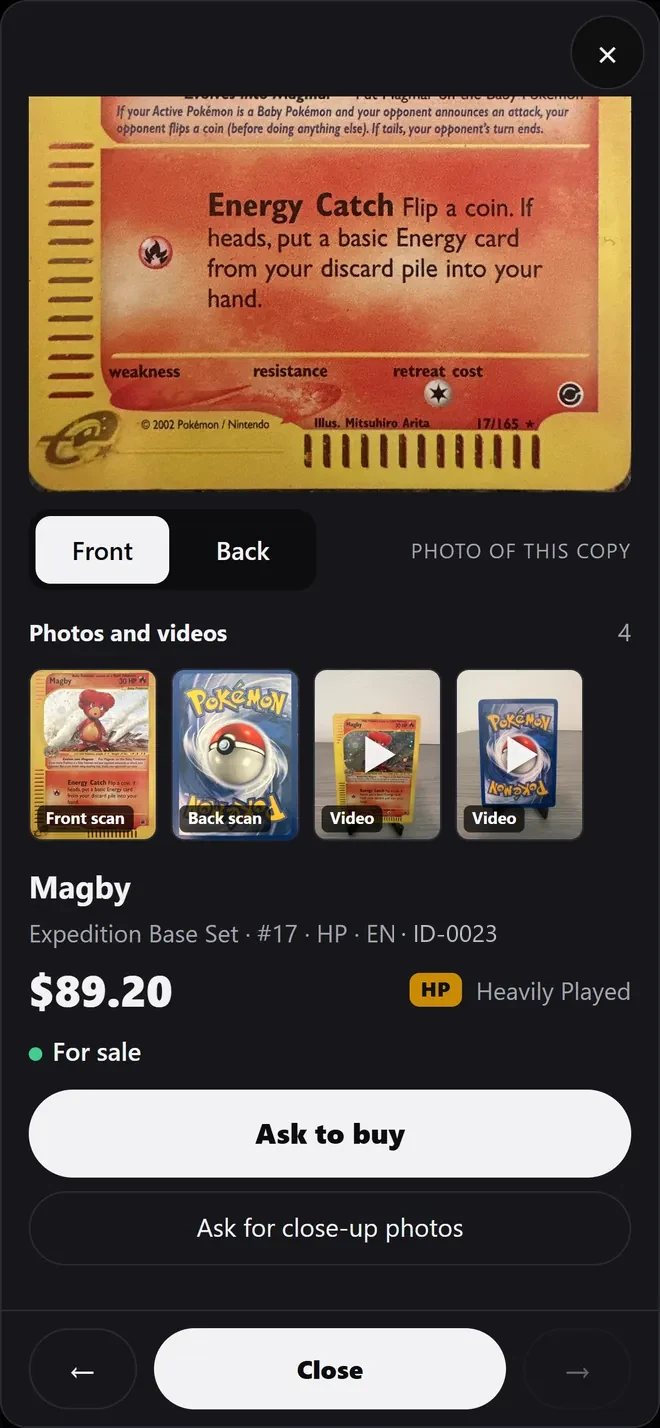
The owner and the customer look at the same card. The owner sees what it cost, what it is worth, and the controls to put it on sale or on trade. The customer sees the card, its condition, and either a price or a plain "Not for sale". A switch in the menu shows the owner exactly what customers see.
Browsing the binder
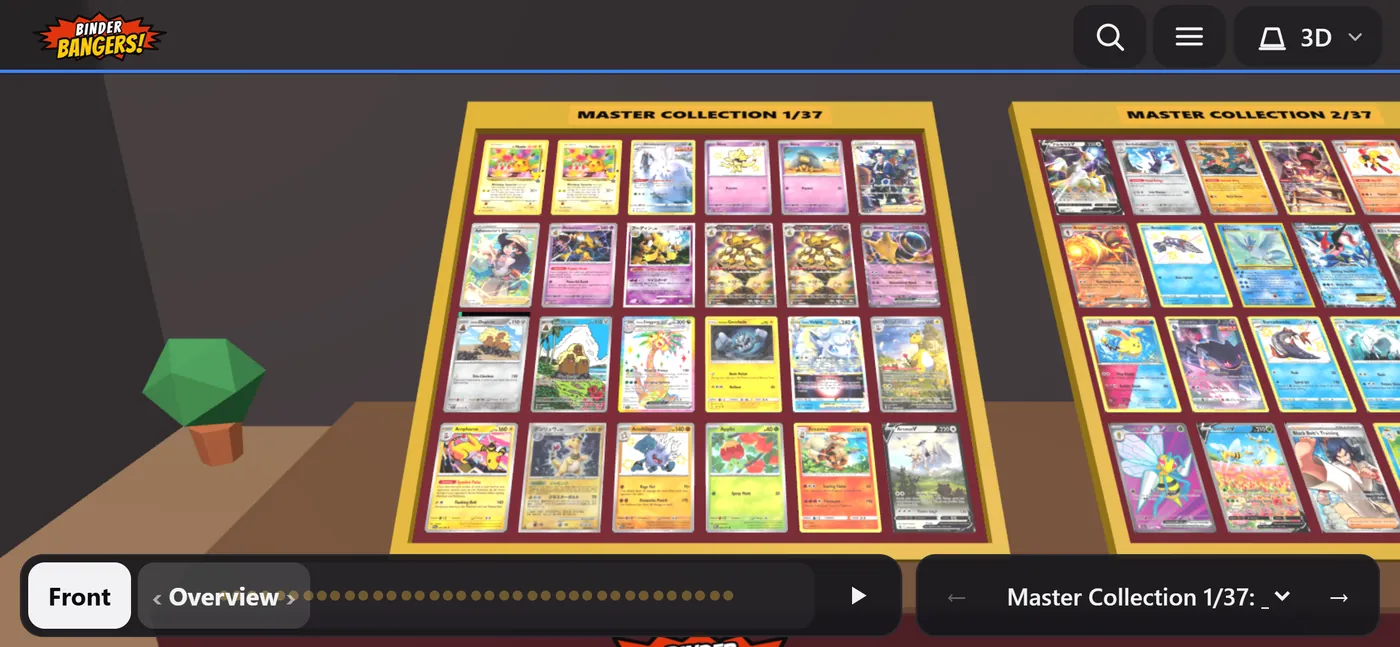
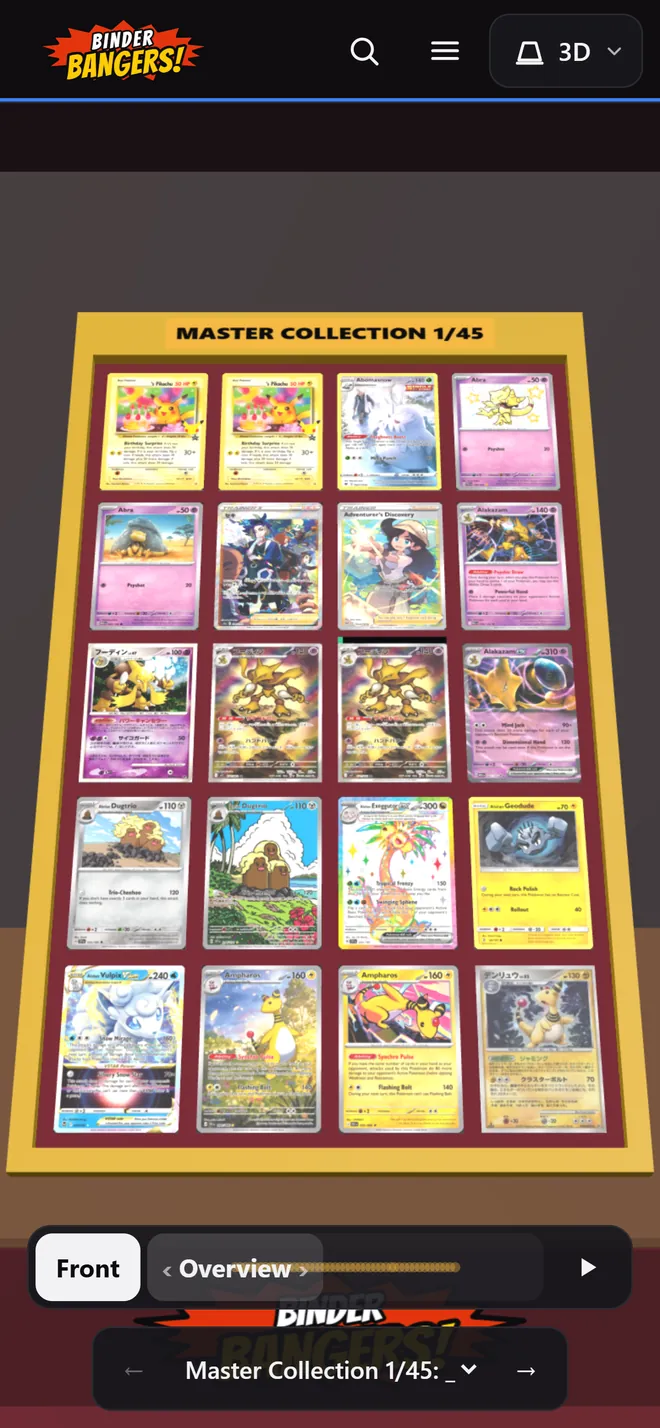
Built with Three.js. Drag to look around, pinch to zoom, or slide the Overview handle and the camera follows your finger along the cases. The play button runs a slow tour. Tap a card to fly to it; tap again to open it. The owner dresses the room: felt, frame and wall colors, a plain table, a low-poly room or a studio, and an optional glass lid.
Where the binders are built
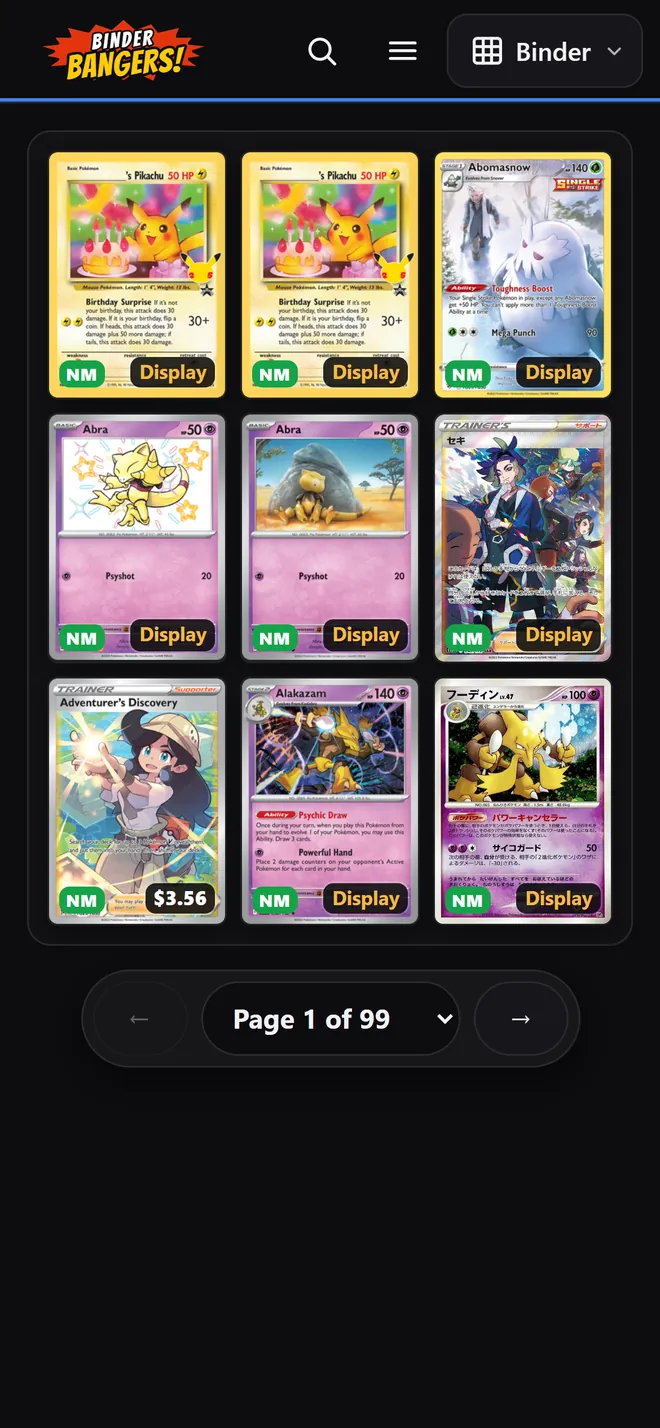
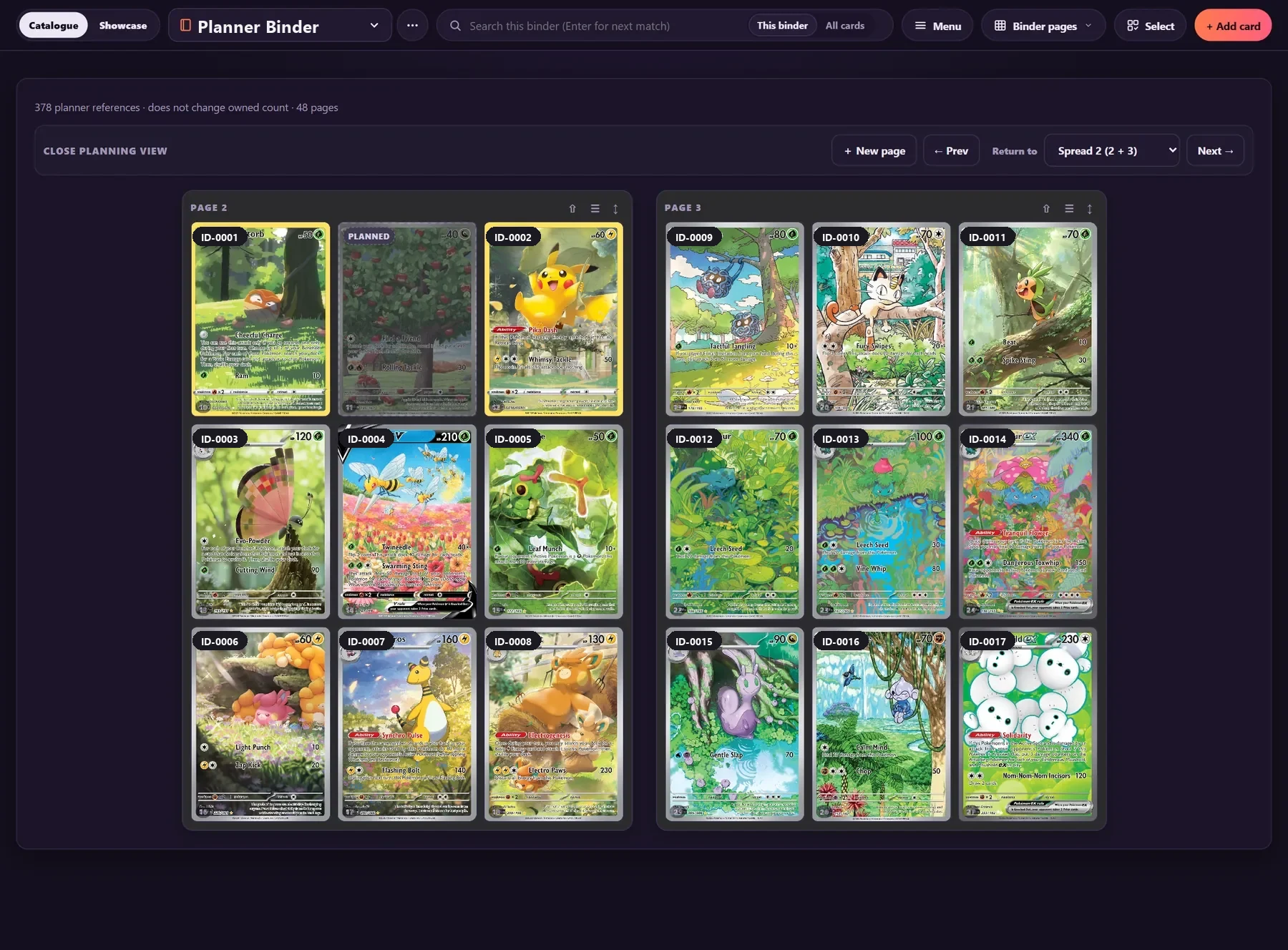
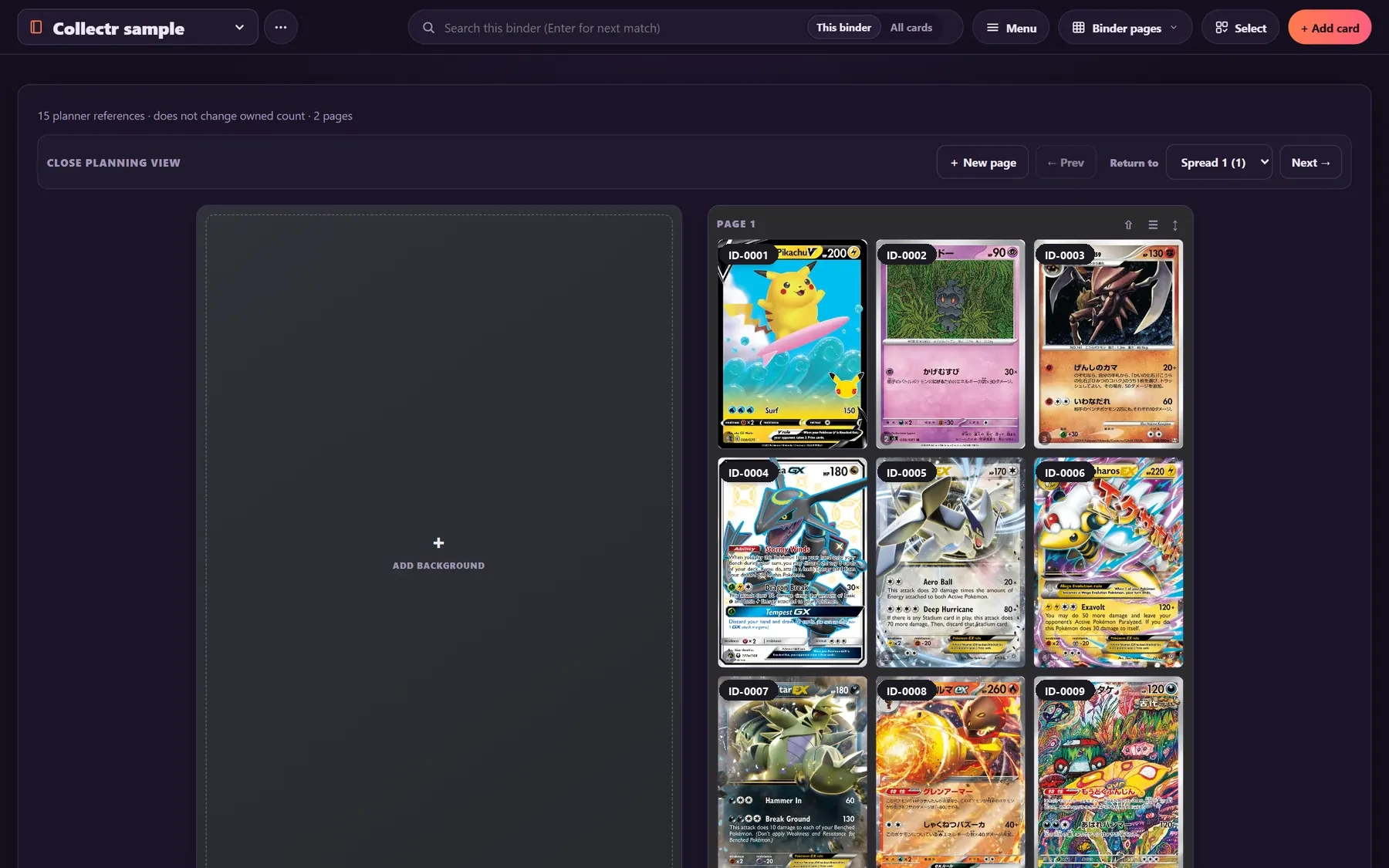
In the Catalogue, the desktop side, each binder was designed with planning in mind. Cards are dragged into place, planned slots mark the ones still wanted, and every card carries its own label (shown here as ID-0001 and so on) that ties it to the ledger. The Match center links cards to catalog pictures. The phone app and the 3D table read these same binders, so cards appear in the order they were arranged here.
Ask about a card
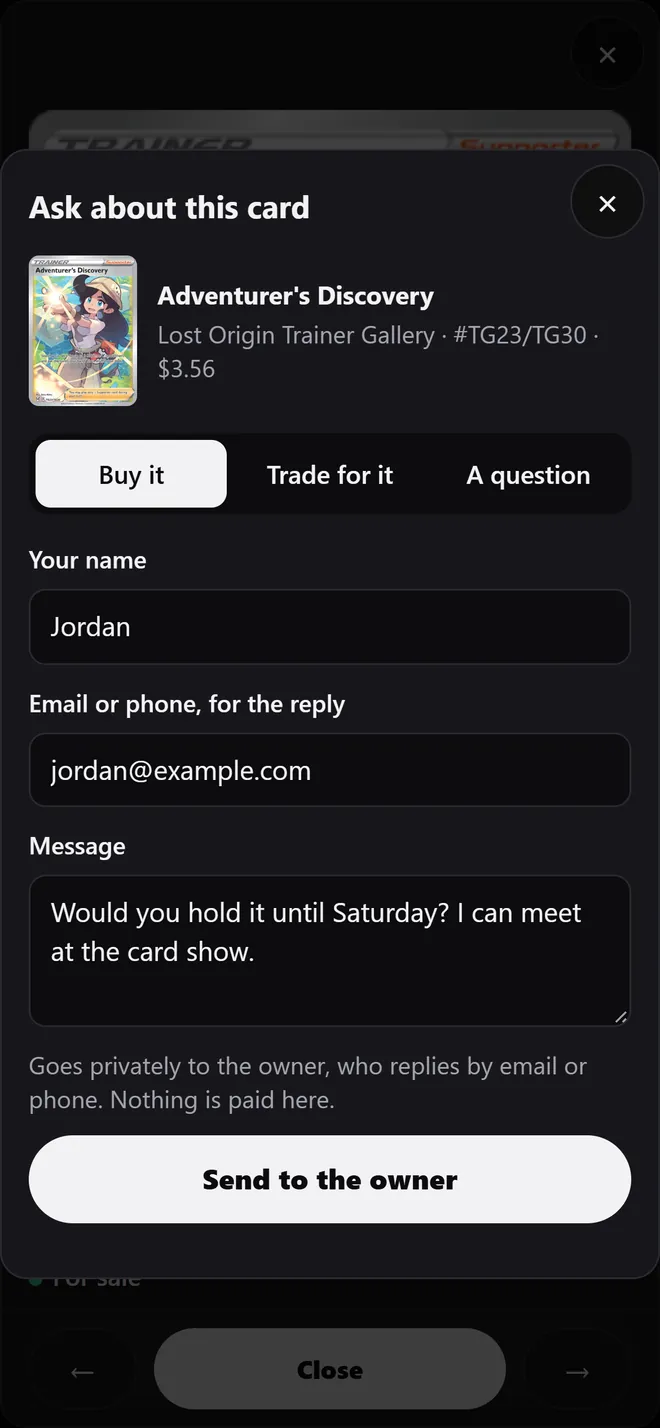
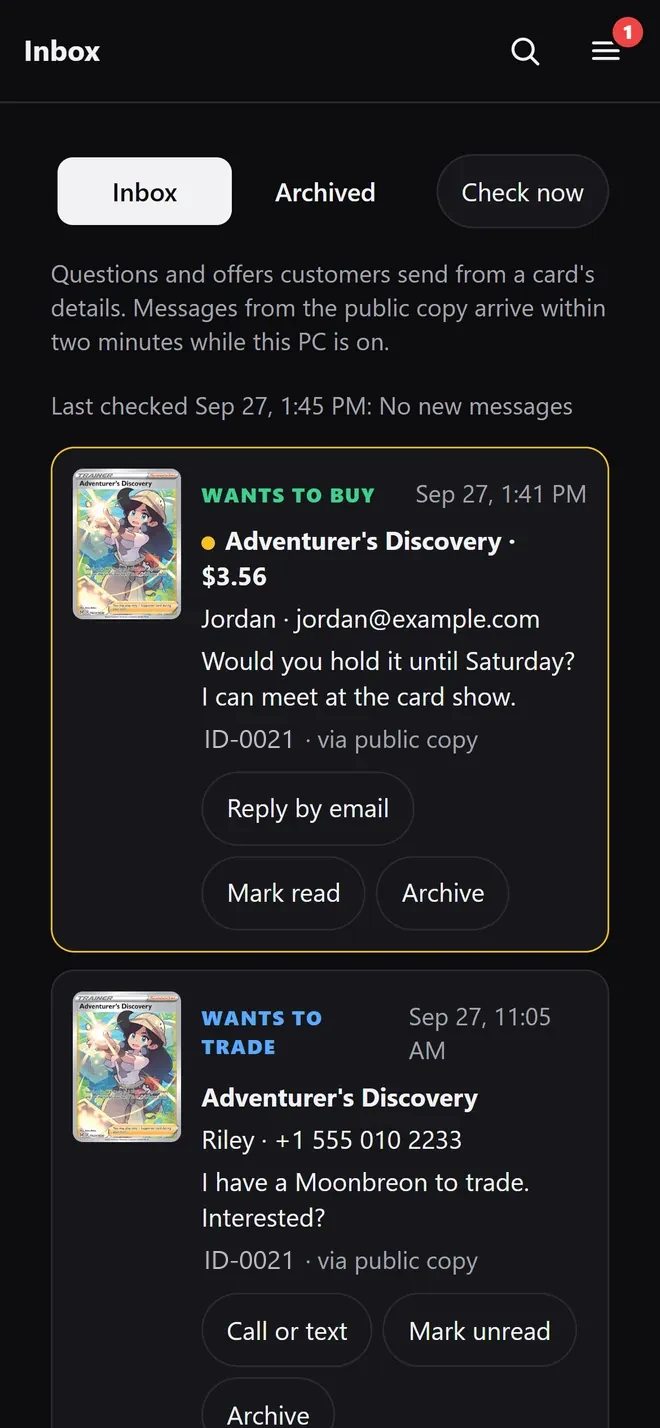
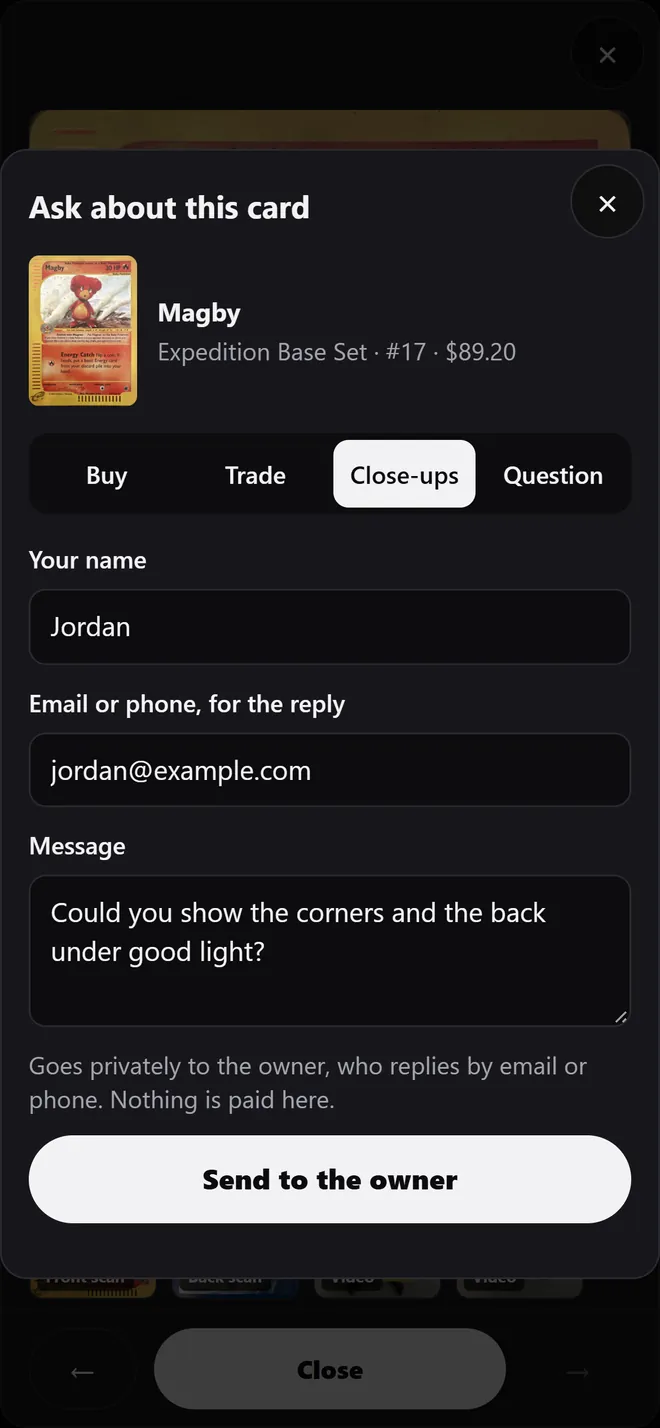
Any card on show has an Ask button: Ask to buy, Offer a trade, Close-ups, or a question. The visitor leaves a name and an email or phone number, and the message lands in the owner's Inbox with an unread badge. No payment happens on the page; the sale is arranged in person or by message. Messages are private to the owner and tied to the card as published, so the price in the message is the price that was shown.
Share detail shots for each card
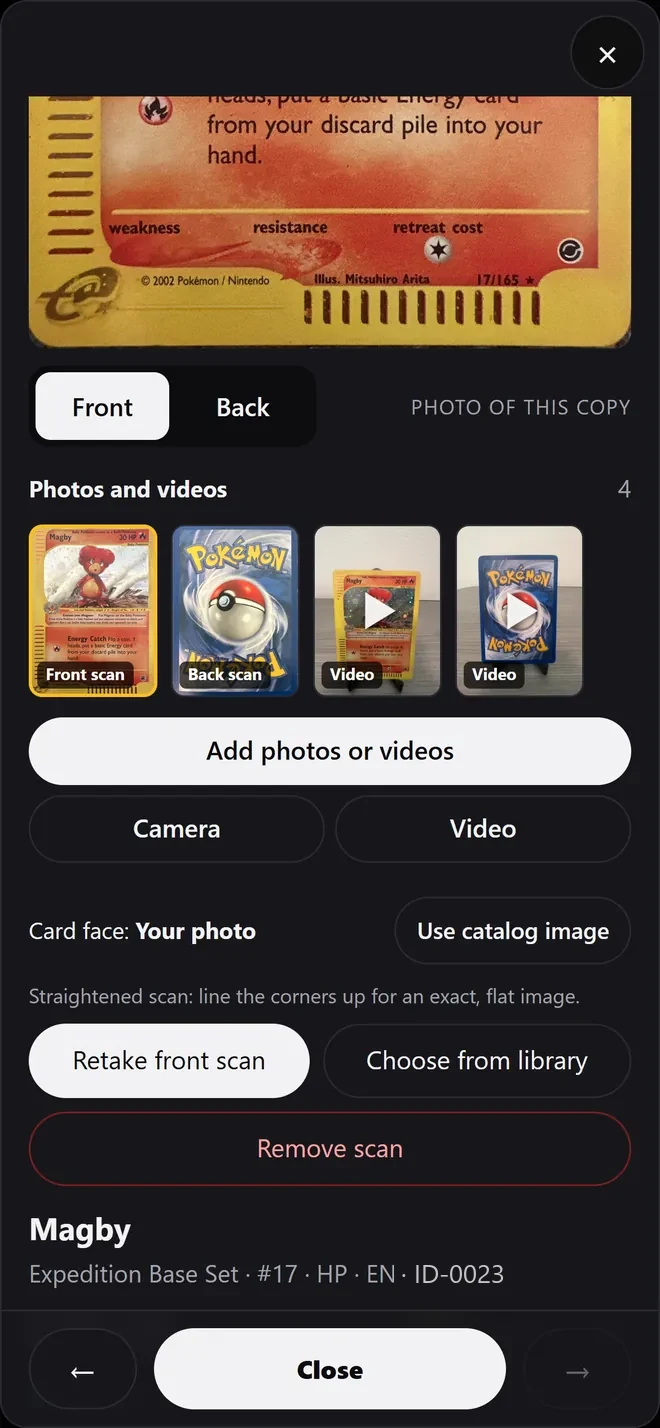
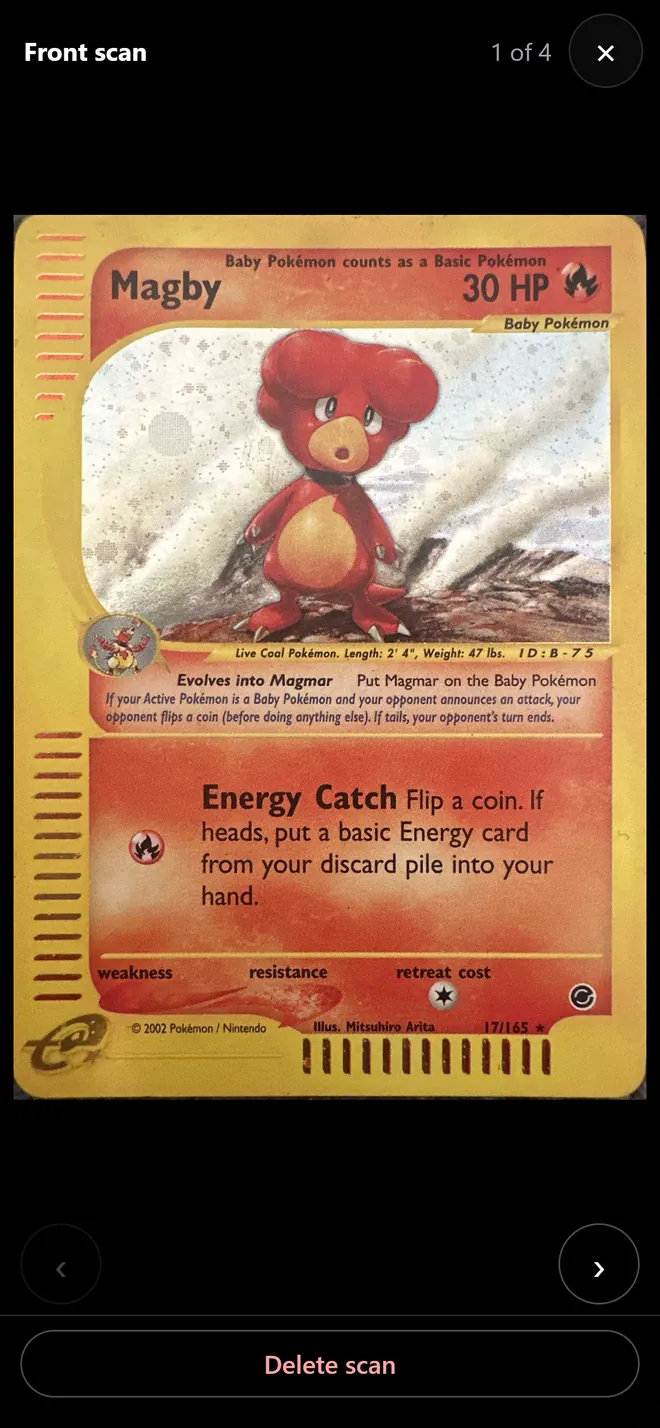
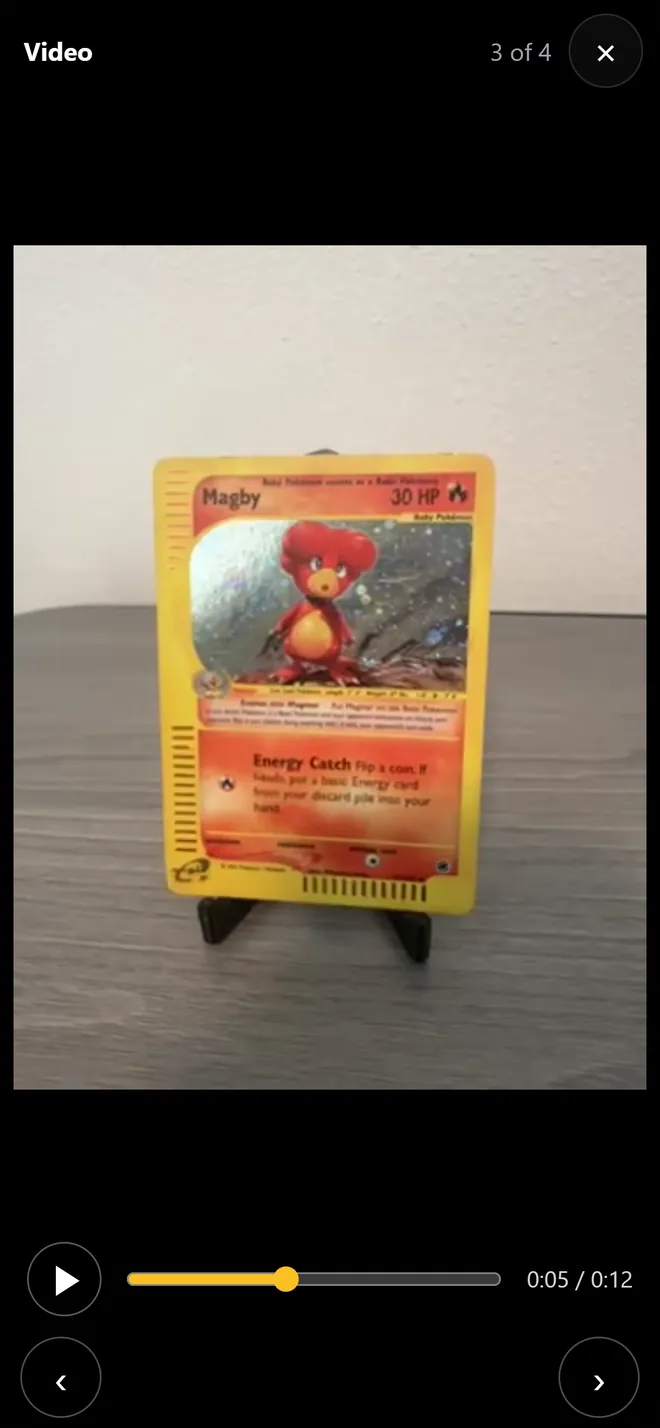
Catalog art shows what a card should look like. Buyers want to see the actual copy. The owner can add photos and videos to any card and straighten a scan of the front and back so it sits flat and square. Videos play with a scrub bar under the picture, so a buyer can turn the card in the light frame by frame with nothing in the way. Close-ups can go up before anyone asks, or on request.
From a QR code to the table
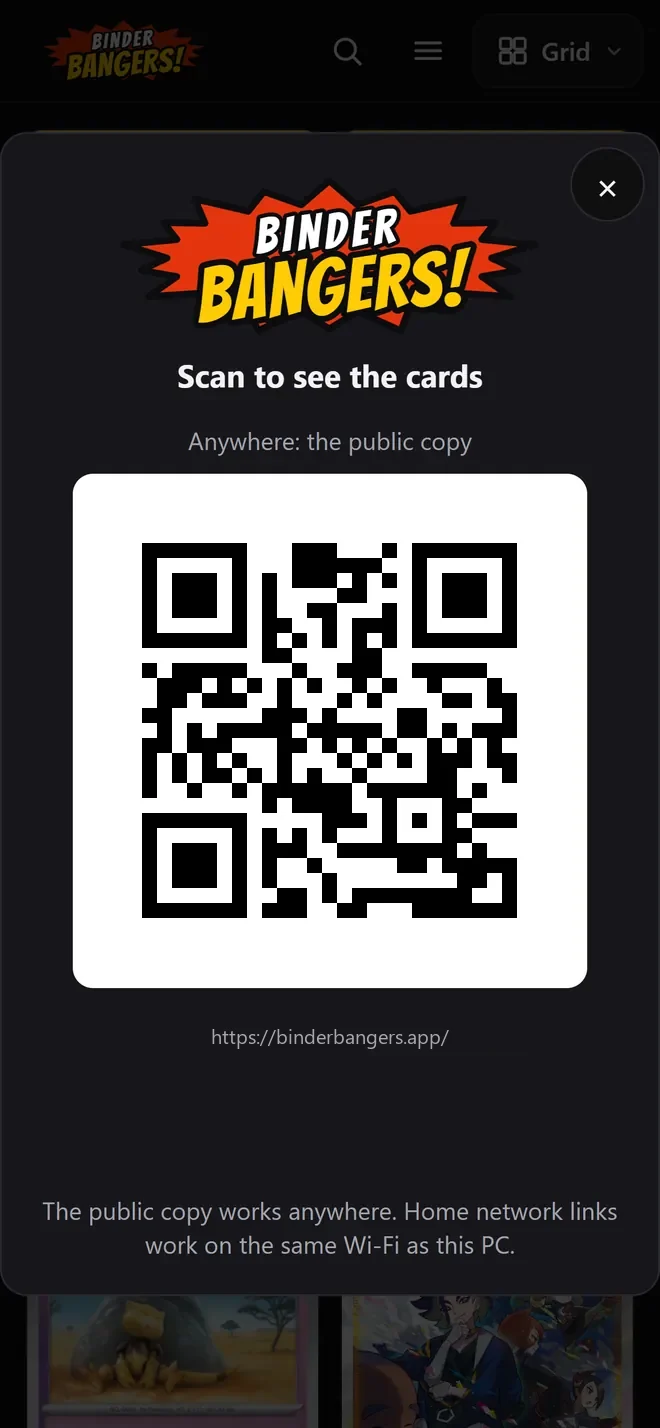
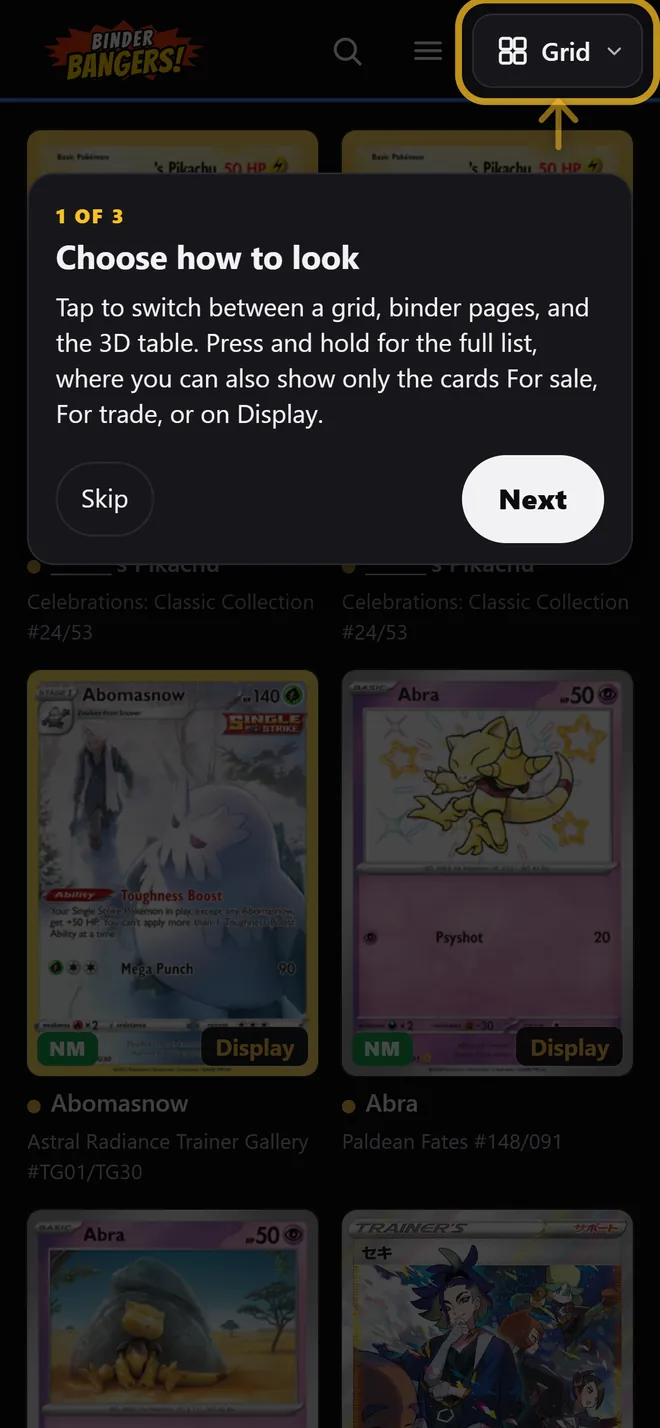
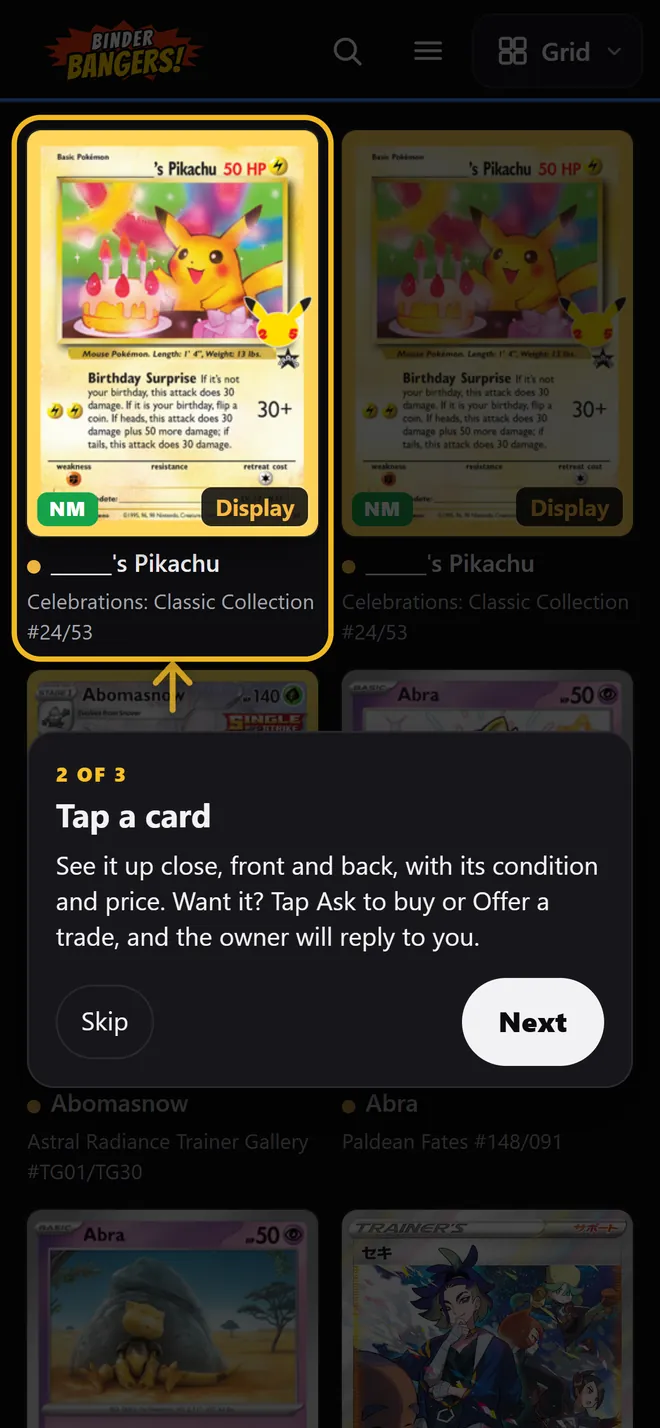
At a card show, a QR code opens the public showcase on anyone's phone. The first time, a short guide lights up the controls one at a time with a blinking arrow: how to switch views and filter by For sale, For trade, or Display only; how to open a card and ask about it; and where to search.
Importing a collection
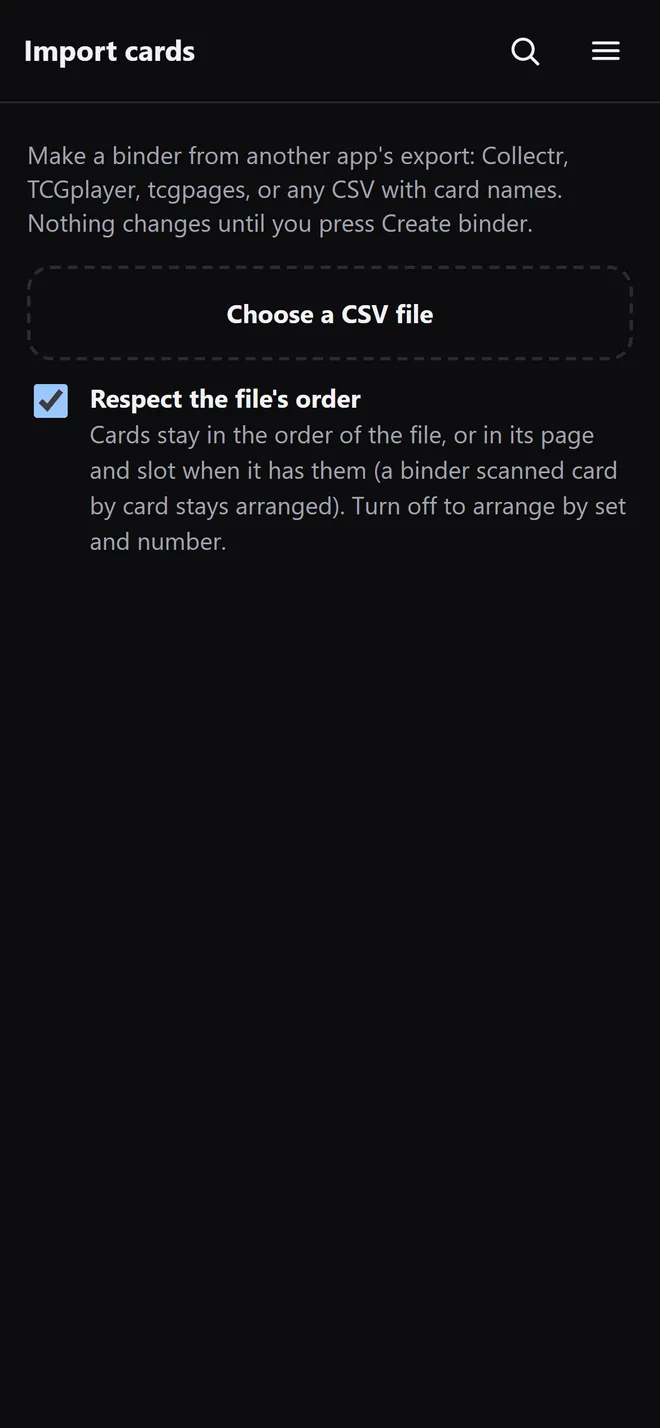
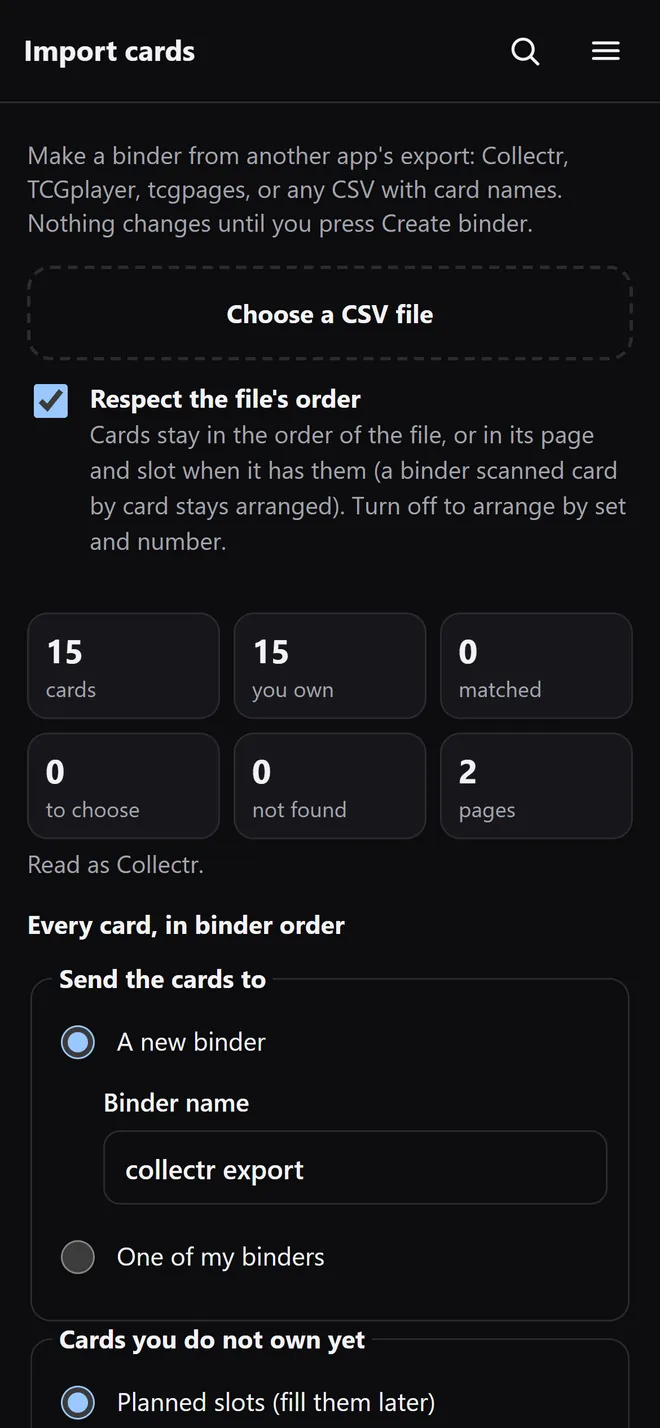
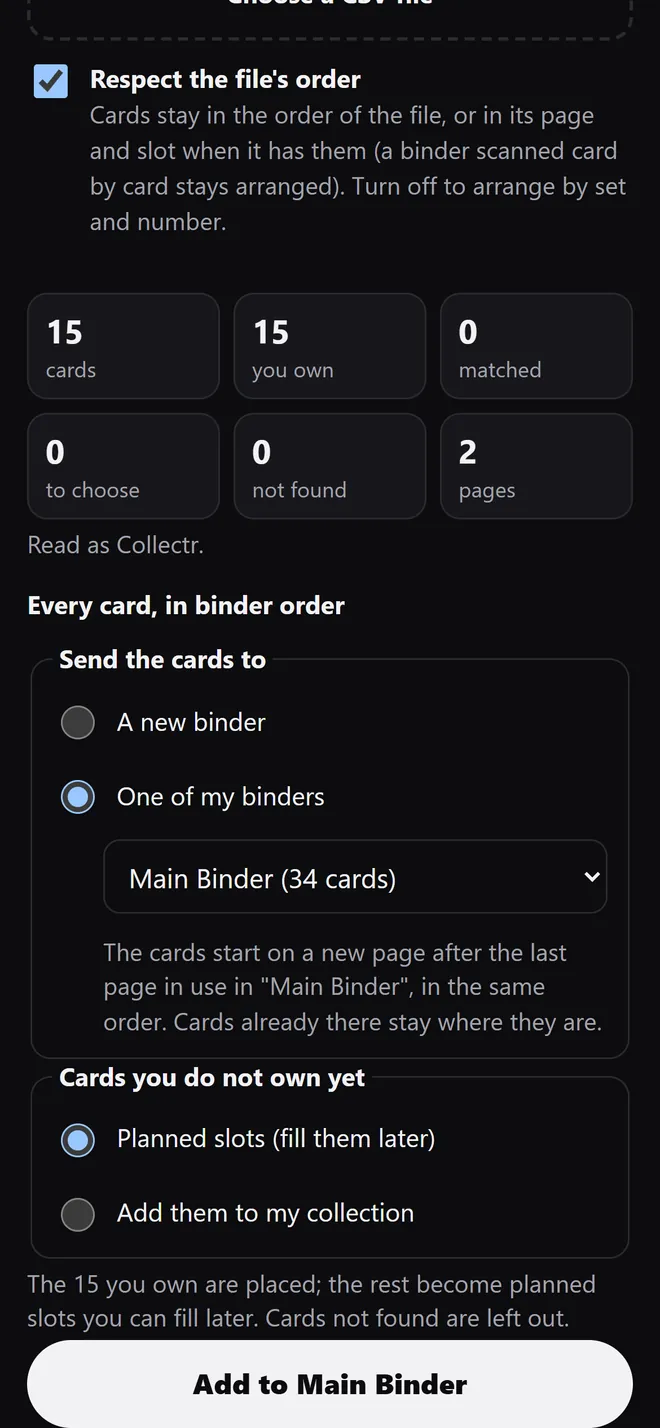
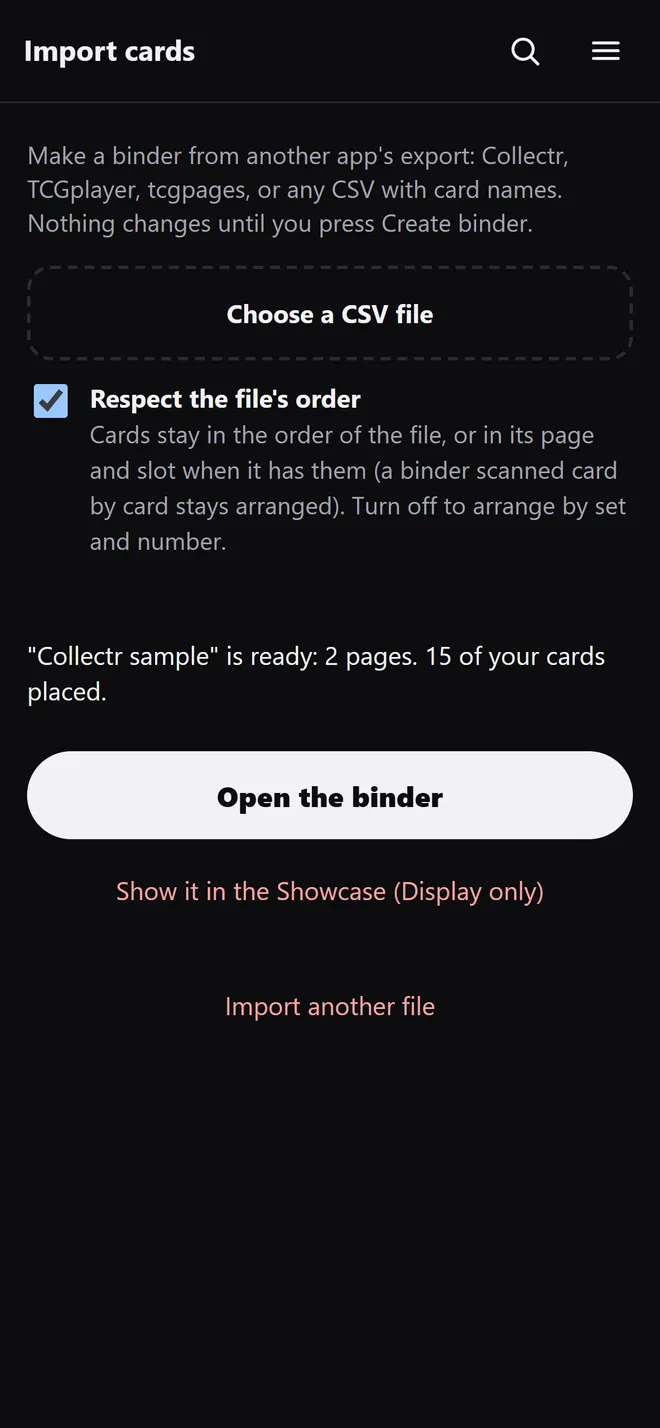
An export from Collectr, TCGplayer, a binder-planner app, or any spreadsheet with card names becomes binder pages in four steps.
A record of every purchase, sale and trade
Underneath the showcase is the part I'm proudest of: a ledger that records every purchase, sale and trade, built so the history can be trusted years from now. I buy, sell and trade in person at card shows, often on my phone with bad signal, so the rules had to hold in messy, real conditions.
- Every physical card is its own record. A printing (the card as it exists in the catalog) is separate from the copy I own. Each copy gets a permanent label that is never reused, so two identical cards never blur together.
- History is never edited. Completed entries can't be changed or deleted. A mistake is fixed with a new, visible correction, the way an accountant would do it.
- Sold means sold. A sale or trade is final. Undoing one is a deliberate, reviewed step that leaves its own record, never a quiet edit.
- Built for card shows. Deals are captured on the phone, offline if need be. Every entry carries its own ID, so a retry on a flaky connection can never record the same deal twice.
- Conflicts are never settled silently. If two changes disagree about who owns a card, the ledger refuses both and puts the case in front of me to decide.
- Money is exact. Amounts are stored as exact decimals from the moment they're typed, never as rounded floating-point numbers, and each entry is sealed with a fingerprint that makes any later tampering evident.
Out · ID-0001 · ID-0002 · ID-0003
In · two cards, plus 00.00 cash
Basis carried over · 000.00
A redrawn example. Amounts are hidden; the ledger itself is private and never published.
Moving it from a simple local database to PostgreSQL was its own project. I rehearsed the migration on copies, verified every record matched, and ran a full restore drill from backup before trusting it with the real collection.
Customize the display
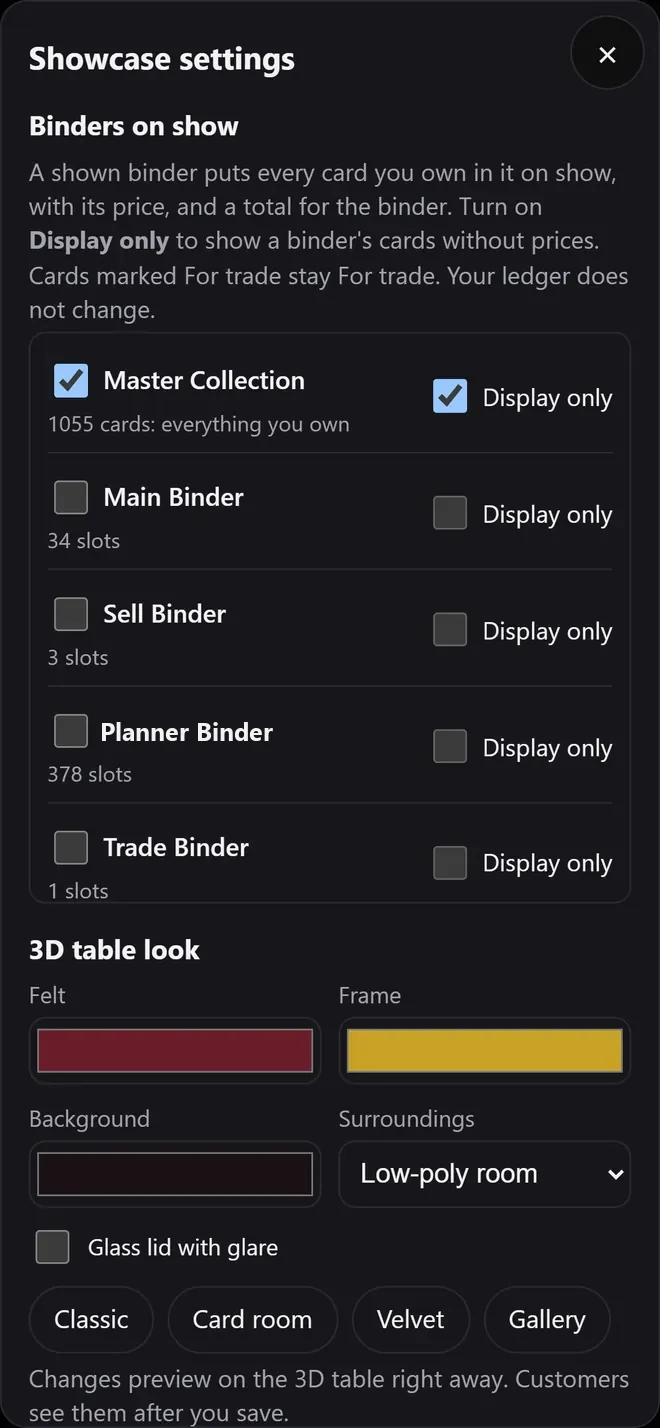
The owner chooses which binders go on show and which are display only, and styles the table with presets (Classic, Card room, Velvet, Gallery) or by hand.
Tech stack
- Three.js - the 3D table, camera rail, and tour
- JavaScript, HTML, CSS - the phone app, installable from the browser, working offline
- Python and FastAPI - the Showcase server and the owner tools
- PostgreSQL - the collection ledger: every purchase, sale, and trade
- Cloudflare - hosting for the public showcase
- Pillow and ffmpeg - pictures cleaned of photo metadata; video still frames
More than 400 automated tests, including real browser runs on a phone-sized screen.
Progress log. Quick notes to track recent activity across all projects.
View the log